
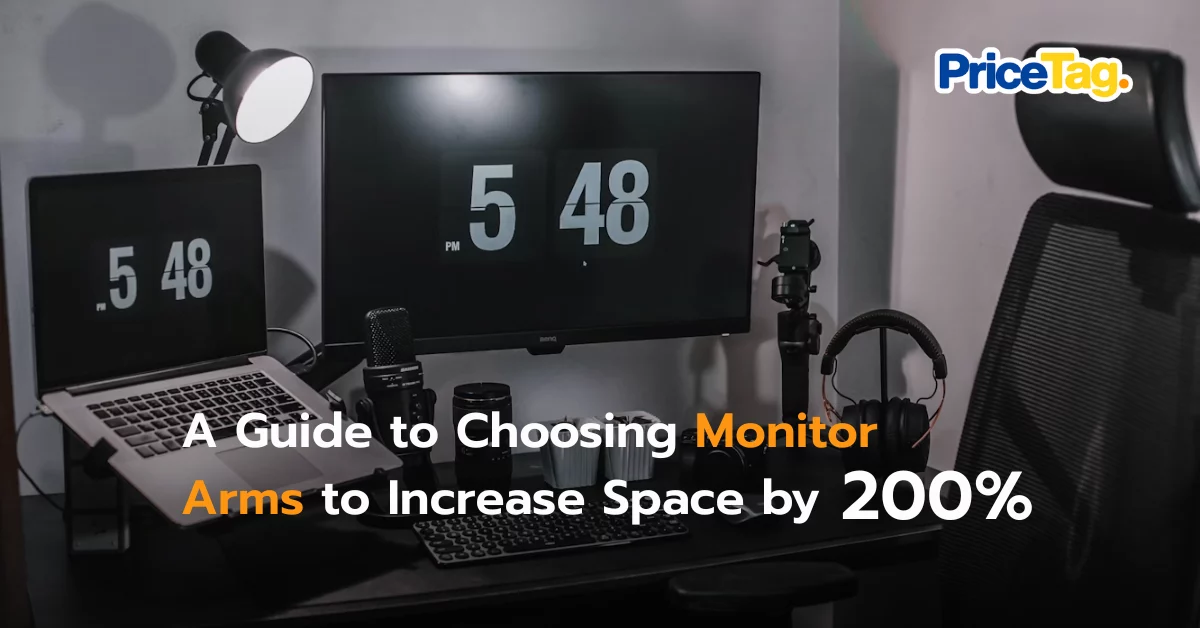
Do you feel like your desk is becoming overcrowded with work essentials? When a monitor and keyboard take up half your surface area, the most effective way to regain space is not buying a bigger desk, but using a Monitor Arm to lift your screen.
Choosing the right monitor arm for your expensive display requires considering these key factors
1. Number of Supported Screens: The Core of Productivity
Your workflow style determines the number of arms you need.
- Dual Monitor Arm: An essential item for streamers or professionals multitasking with documents. It allows you to open multiple programs side by side. I recommend choosing independent arms so you can set one screen vertically and the other horizontally without them interfering with each other.
- Laptop Holder Arm: The solution for those using a laptop alongside an external monitor. It features a tray to hold your laptop, helping align the eye levels of both screens perfectly.

2. Size and Weight: Preventing the “Tilting Down” Problem
1. Supports up to 8 kg
An entry level, budget friendly option.
- It is suitable for 17 to 32 inch lightweight or standard office monitors.
- This is the best value choice for 24 to 27 inch screens.
2. Supports 9 to 12 kg
Stronger and more stable than the entry level models.
- It is ideal for high end 24 to 32 inch monitors that are thicker and heavier.
- If you frequently rotate or adjust your screen angle, this is the recommended level.
3. Supports 16 to 20 kg
Arms that can handle this much weight are usually Heavy Duty powerhouses. They’re big, incredibly durable, and feature a rock-solid build quality.
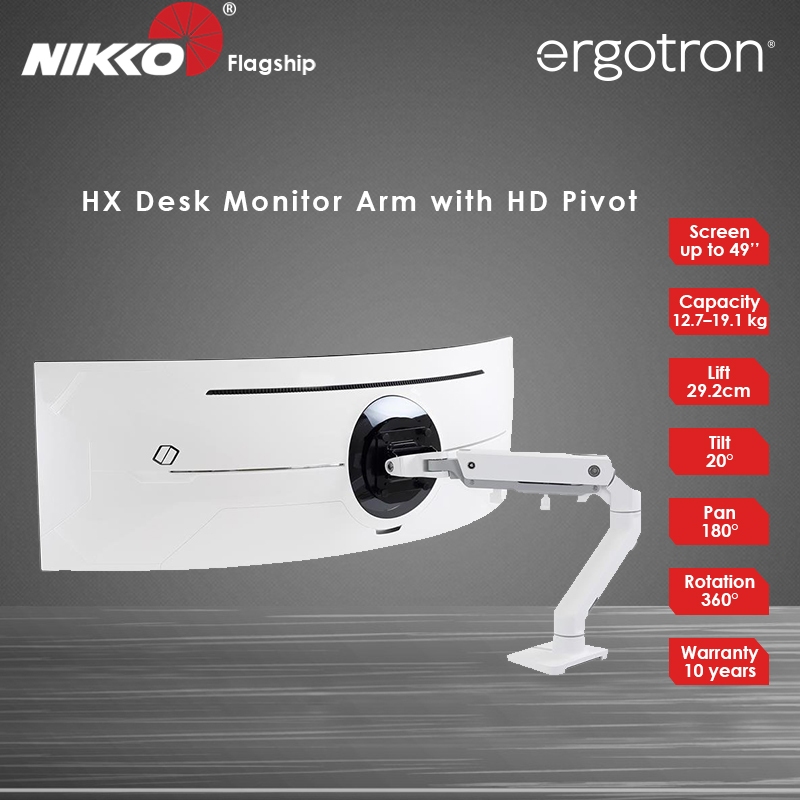
- Heavy Duty style arms for extra large 32 inch displays or massive 49 inch Ultrawide monitors.
- The weight counterbalance system is excellent, making giant screens feel almost weightless while remaining perfectly still.
Caution regarding VESA Mount: Always check the bolt holes on the back of your monitor to ensure they match the standard 75 x 75 or 100 x 100 mm sizes so you can install the arm without issues.
3. Installation Methods
1. C Clamp and Grommet
The most popular method. It is very stable and clears the most desk space. However, be aware that clamping might leave a small dent or mark on the desk surface.
- Pros: Rock-solid stability! It also frees up so much desk space, making your setup look incredibly clean.
- Things to Consider: Using a C-clamp may damage or leave dents on your desktop. On the other hand, choosing a grommet mount means you’ll have a permanent hole in your desk.
2. Wall Mount
Provides the most professional studio look. It offers maximum stability and takes up zero millimeters of desk space. The downsides are that it is difficult to move your setup later and leaves permanent holes in the wall.
- Pros: Maximum stability and incredible strength. Best of all, it doesn’t take up a single millimeter of your desk space!
- Things to Consider: Be aware that wall mounting involves drilling large, visible holes. It also offers the least flexibility if you decide to move your desk or rearrange your room. Make sure you’re committed to this specific spot.
3. Desk Stand
The easiest to use and move without any assembly required. However, it still takes up some desk space since it requires a wide base to support the monitor’s weight.
- Pros: Ultimate simplicity. No installation needed (no clamps or holes). Completely portable; just move it to your new spot and you’re done!
- Things to Consider: Stability is its main weakness compared to clamped or bolted options. Also, it doesn’t free up your desk since a large base is necessary to keep the monitor upright.
4. Adjustment and Arm Systems
Your choice of internal mechanism matters for long-term use.
- Gas Spring vs Mechanical Spring: I highly recommend the Gas Spring system. It allows for much smoother height adjustments. You can move the monitor up and down with just a fingertip.
- Range of Motion:
- Tilt (Up and Down): Should have a wide range between +90° / -45° to reduce screen glare.
- Swivel (Left and Right): Useful for sharing your screen with others or adjusting to your sitting position.
- Rotation (Portrait to Landscape): Should rotate 360° for those who want a vertical screen for reading code or social media feeds.
Recommended Models by Screen Size
24 inch : The most popular
- Dreamdesk Award Series Single Monitor Arm
27 inch: The Gamer’s Choice.
- Flexispot F7 Single Monitor Mount
32 inch: For Movies & Ultimate Productivity
- Bewell Ergonomic EA06 Single Monitor Arm
34 inch: The Big Screen for Serious Work.
- ModernEgo Single Monitor Gas Spring Desk Mount
49 Inches: The ultimate Ultrawide
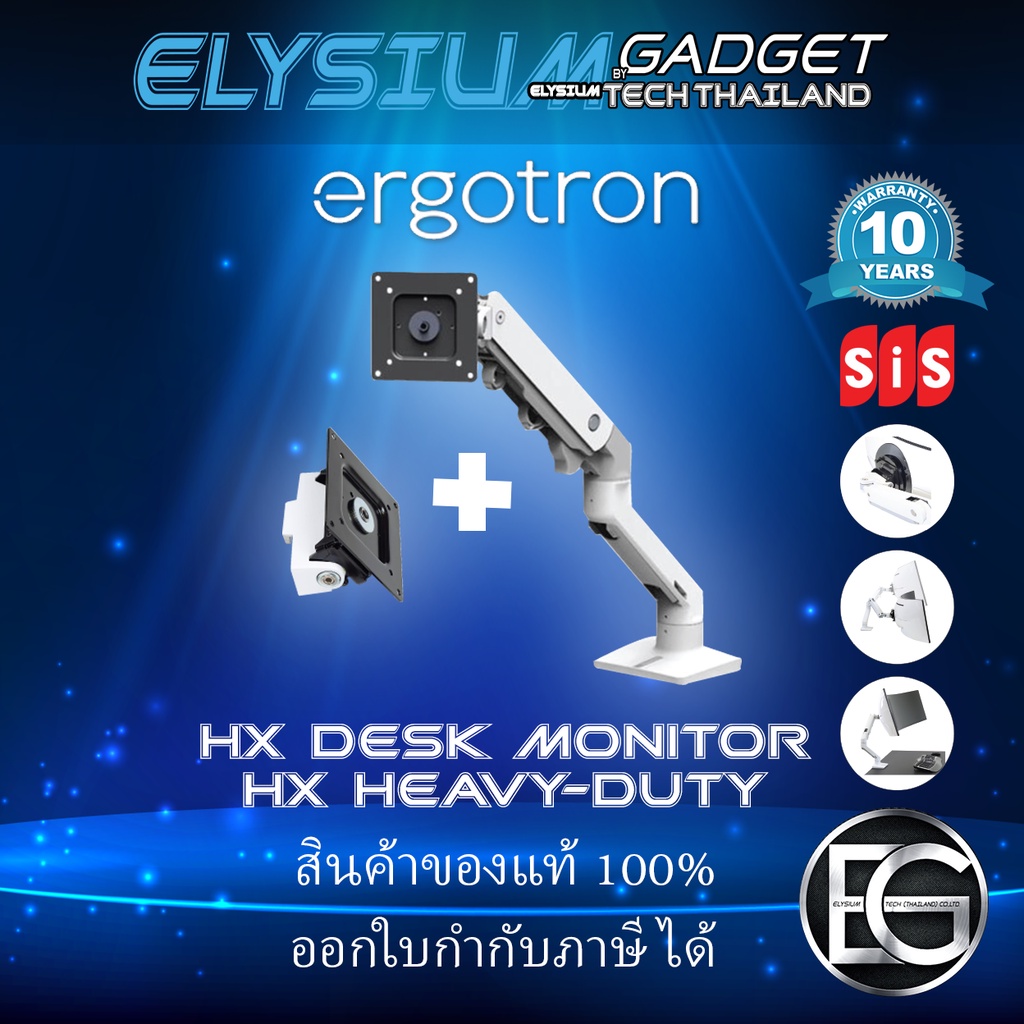
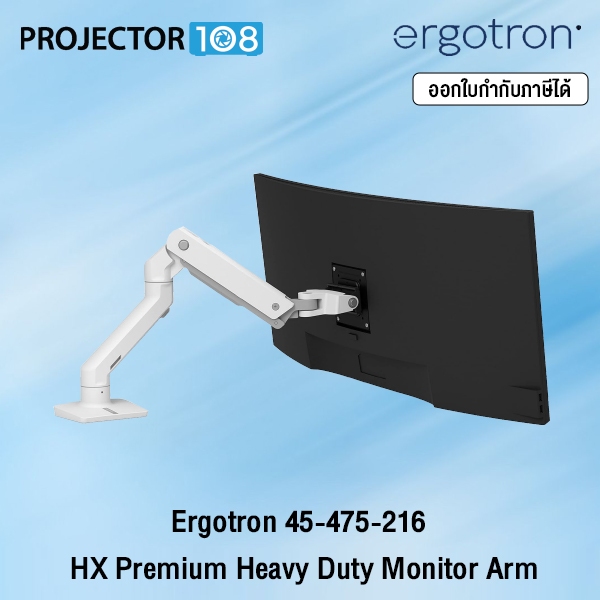
- Ergotron HX Desk Monitor Arm
Summary
Choosing a monitor arm that supports the correct weight and adjusts smoothly is a true investment in your health and productivity. When the screen is at the correct eye level, you can work longer without neck pain and gain plenty of desk space for other productivity tools.
Make sure your specs match to keep your monitor safe. Enjoy your new organized and professional workspace!